Google has become the most-used search engine because it keeps releasing helpful features that people rely on every day, enhancing their product feed management capabilities. It pulls in an astonishing 89.3 billion visits every month, an obvious sign that everyone loves it. Google stays on top because it listens to both shoppers and businesses and builds tools that help them both. Almost half of shoppers, 46%, begin their hunt for a product on Google, and experts predict that a whopping 95% of people will be buying online by 2040, making it essential to optimize your product listings.
To keep pace, Google keeps improving its eCommerce features, making sure it stays a step ahead of any rival in the marketplace. By rolling out smarter and better tools for online sales, Google gives companies everything they need to succeed in the fast-changing world of eCommerce. If you run a WooCommerce store, listing your products there isn’t just a good idea; it’s a must. In this guide, we’ll break down what Google Shopping is, show you how to build a product feed, and dive deep into how to optimize that feed so you can get the most bang for your buck by adding new products efficiently.
What is Google Shopping?
Google Shopping is a Google tool that lets people search for, compare, and buy real products from businesses that have paid to show what they sell. This comparison shopping engine, or CSE for short, gathers products and prices from many stores all in one neat spot. When you search, the results show small pictures, the store’s name, and the price for each product. Right now, you can find it in over 40 countries around the world.
Once a part of Google Ads, Google Shopping helps retailers show their real products right next to search results on Google, ensuring every product is visible. It’s a great way to get noticed in the marketplace, but setting it up is a bit trickier than regular text ads. Instead of choosing keywords, you have to send Google detailed information about each product.
How to Create a Feed in Google Merchant Center in Easy Steps
Making a product feed in Google Merchant Center is the first big step to getting your products to show up on Google Shopping and across Google’s services. This feed keeps your product details tidy and up-to-date, so shoppers always see the right info when they look for what you sell.
1. Sign in to Google Merchant Center

Start by logging into your Google Merchant Center account. If you don’t have one yet, it’s easy and free to create a product feed right at Google Merchant Center.
2. Navigate to the Feeds Menu
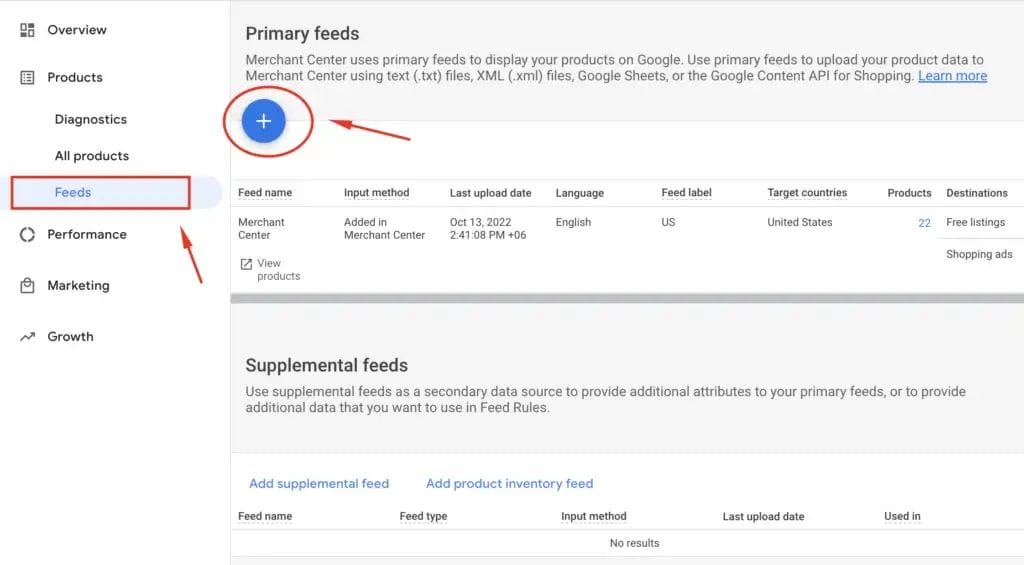
Once you’re logged in, look to the left side of the screen to manage your product catalog. Click on Products, then Feeds. This is where you’ll keep track of the product listings you want to link to Google Shopping.
3. Add a New Feed

To get started with a new feed, click the blue circle with the white plus sign in the upper-right corner of the screen. That simple click lets you open up the setup wizard for your new feed.
4. Select the Connection Type
Once you click continue, the first thing on the list is to give your feed a name, something clear so you can find it later. Right after naming, pick the connection type for your product catalog. “Schedule Fetch” is the most popular choice, as it lets you pick a timetable for uploading your feed automatically each time you change anything in your product feed management system.
5. Set Up the Automatic Updates
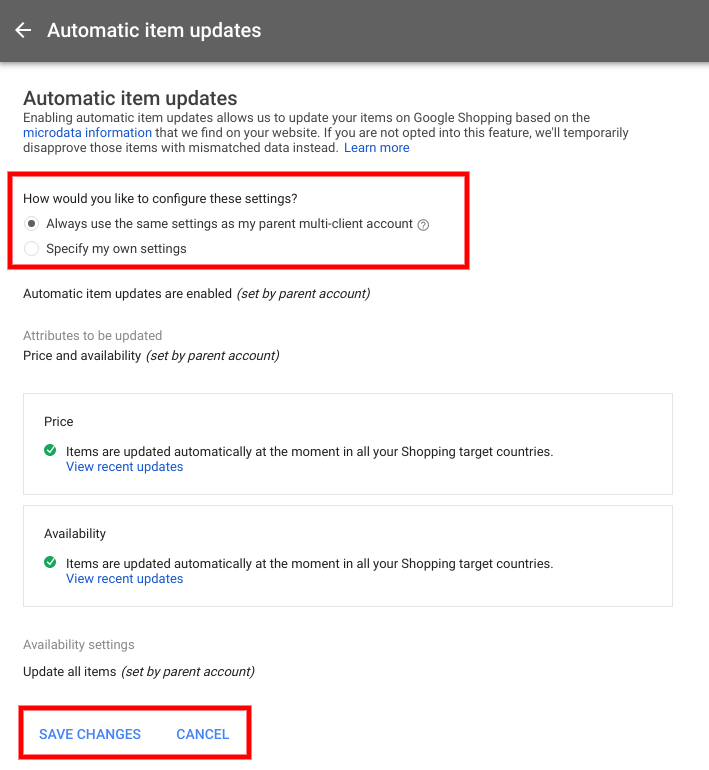
Next, you’ll set a few key details. Type in the catalog name that Google’s products will use, then pick how often to check for updates, like daily, weekly, or something else. Be sure your schedule matches how often you change your product data in your inventory. Google suggests waiting at least 30 minutes between updates, so plan that gap if you expect big changes. Finally, insert the URL of your product data feed file. This link usually comes from whatever platform you use, like Shopify, Google Sheets, or another catalog manager, in either CSV or XML format.
6. Craft and Check the Feed

After you’re done setting everything up, hit the Create Feed button. Google will scan your data and tell you how many products passed and how many got kicked back because something was set up wrong. Fix the errors right away so those products can start showing up in Google Shopping searches.
Tips to Make the Most of Your Feed
Optimizing your Google Shopping feed can make your campaigns and your revenues better. See the below tips to make your feed better and achieve even better outcomes:
- Search for Keywords: Search deeply for those words that customers really type in while searching. Integrate these naturally in your product title and description so your products show up more often.
- Use Negative Keywords: Select negative keywords that will prevent searches from showing up when they are not helpful. That way, you reach the correct people and don’t waste your money.
- Simple Product Titles: Use short product titles. Put in brand, model, size, color, and material. Make it engaging without being greedy with sales words.
- Rich Descriptions: Complete your product descriptions with brief details emphasizing the features, advantages, and what differentiates the product, keeping an eye on your character count for your product listings.
- Sharp Images: Fill your listings with HD images that comply with Google size requirements, displaying the product from various angles so it gets noticed and produces more clicks.
- Price it Right: Get the prices right at all times and revise them as soon as possible. If out of stock, remove it or put it in marked up form so customers will not be let down.
- Get the Facts: Add all the most important facts like size, color, material, and special IDs like GTINs and MPNs. Then put the product in the most fitting category. Having the category and the facts right allows individuals to be able to find what they want to find.
- Smart Feed Tools: Use product feed tools that have the ability to create, update, and automatically pick errors in your product data feed. They help you maintain the feed current and make list uploads easy.
- Individualized Labels for Quick Sort: Create individualized labels to sort products by season, profit margin, or whatever data is relevant to your business. This enables you to configure improved campaigns for your product data.
- Watch, Bid, Win: Monitor what sells. If a product is a star, bump up the budget or bid; if it is not, reel it back in. Spending where best returns are made increases your profit.
- Keep It Current: Don’t have product information go stale. Refresh prices, stock, and other data on a consistent beat. If you are Shopify-based, there are good integrations for your Shopify product feed, or you can maintain a Google Sheet that communicates with your feed.
- Watch the Numbers: Get into the habit of monitoring statistics like the number of people who click through your ads, the number of them who subsequently purchase something, and the amount of money you’re bringing in from the ads you pay for. These are the statistics that will tell you what is working and what isn’t, so you can modify your product data feed and campaign strategy to get it all working even better.
When you set up your Google Shopping feed in this way and then proceed to fine-tune it with smart tools and smart tips, you ensure every single one of your products in your WooCommerce store or e-business appears well in the market. That means you get in front of the right buyers and increase your chances of receiving more traffic, more transactions, and more orders.
Conclusion
Google Shopping is a resource for owners of WooCommerce stores and sellers ready to sell their items to a large, engaged pool of buyers. When you know Google Shopping and work with an easy, step-by-step guide to build and maintain a great product feed in Google Merchant Center, you can enhance the number of individuals seeing you online and selling your products.
Focusing on the right keywords, plain product names, well-crafted product descriptions, crisp images, and new information stands out for your products in search results and reaches the right buyers. Adhere to these practices, and you’ll be unlocking all Google Shopping can provide, pushing your e-commerce store towards prosperity and plenty in an increasingly speeding digital world.

Vijay Sood is a seasoned digital marketer with a passion for driving online growth and innovation. With a robust background in developing and executing comprehensive digital strategies, Vijay excels in leveraging SEO, content marketing, and social media to boost brand visibility and engagement. His expertise lies in transforming data-driven insights into actionable marketing campaigns, helping businesses achieve their digital objectives.