Online shopping is no longer just a convenience; it has evolved into a multibillion-dollar ecommerce powerhouse. In 2019, it was 3.53 trillion US dollars and is also predicted to be 6.54 trillion for the year 2022. This indicates that online shopping is increasing globally. It is gaining popularity since corporations are introducing new services for internet consumers to facilitate their online shopping experience like the offline shopping experience.
Launched in 2002 under various names, including Froogle and Google Product Search, Google Shopping now sits at the intersection of search engine optimization and commerce. It’s not a traditional marketplace; instead, it functions like a sophisticated product directory, guiding shoppers directly to the nearest checkout page, whether that’s a dedicated online store or a partner retailer. This detailed Google Shopping guide will provide you with everything you need to know about using Google Shopping.
What is Google Shopping?
Simply put, Google Shopping, also known in the U.S. as Buy on Google or Google Express, enables retailers to showcase their inventory across multiple Google platforms. According to Google, Shopping Actions provides merchants with the tools to sell through mobile and desktop searches, Google Assistant, and the Google Display Network, all with a unified cart and a consistent checkout experience.
It puts your products in front of customers on every Google channel. You get exposure on Google Search, the Shopping app on mobile devices, Google Assistant on phones, and even Google Home speakers. Shopping Actions works on a commission-only model. You don’t pay until a sale happens. Google handles checkout, customer service, and returns, while you manage shipping and inventory for your products directly.
Why Google Shopping Actions Matters
We’ve already talked about the core differences between Shopping Actions and the old Google Shopping model. Now let’s talk impact! Here’s why you should treat GSA as a core part of your online strategy.
Gain Instant Visibility
Picture your products showing up at the top of Google Shopping Ads whenever someone searches for them. That’s the core benefit of Shopping Actions. This program places your product listings in the most prominent spots across Google’s entire ecosystem, surpassing what the traditional Shopping tab offers.
When shoppers search for an item, they not only see your product listing front and center on Search; they also encounter it later on the Assistant, in the Shopping app, and on Google Home devices. That kind of exposure across platforms means more shoppers find you more often.
Convenient Check-Out
By allowing customers to purchase directly on Google, companies can reach those who appreciate fast, easy experiences. “Buy on Google” leaves customers on the platform, removing a step of a visit to some other site. Less clicking reduces the likelihood of drop-off, increasing the ratio of successful sales.
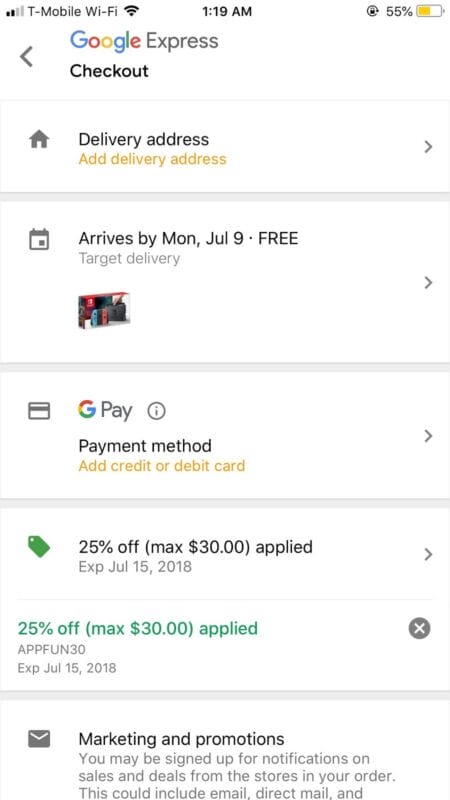
GSA allows consumers to checkout directly within Google, leveraging the stored payment details. This effortless process spares effort and accelerates the transaction, which is quite often completed by customers in one touch.
Increase Conversion Rate and Cart Value
The frictionless shopping experience that is part of Google Shopping Action does a lot more than simply feel seamless to consumers; it is a strategic enabler of higher conversion rates and higher average order values for your E-Commerce business.
With Buy on Google, consumers can shop products from multiple stores in a single cart throughout Google’s platform, bypassing the frustration of logging in and out of numerous disparate sites and fragmented carts. This consolidation retains more customers in the funnel, higher overall conversion rates, and lower cart abandonment in the ecommerce process.
Harness the Power of Voice Search
The adoption of voice-enabled devices, such as smartphones, smart speakers, and virtual assistants, has made voice search a mainstream activity for searching and purchasing products. Voice commerce is boundary-less too and is rapidly expanding on all the continents.

GSA smoothly merges voice assistant capabilities with Google Assistant, enabling customers to easily locate and buy merchandise via simple voice commands. The integration boards the voice-buying bandwagon, presenting consumers with an easy, hands-free method for adding items to their shopping carts.
How to Start Selling on Google Shopping
Launching your sales on Google Shopping is a straightforward process that can be summarized in seven key steps. This walkthrough will guide you from setting up your first account to launching your inaugural ad campaign.
Step 1: Create Your Google Merchant Center Account
The very first move is to set up your Google Merchant Center account. If you don’t yet have a Google account, such as Gmail, you’ll need to get one. Once that’s ready, head to the Google Merchant Center website.

a. Fill in Your Business Details for your ecommerce setup: You’ll be asked for your business name, the country you’re selling from, and your time zone for the checkout process.
b. Decide on How Customers Check Out: Google gives you a few choices: send customers to your website, let them check out directly on Google, or offer in-store pickup. Select the checkout method that best suits your sales process.
c. Link Your Tools: If you’re using other software like inventory or order management, check the appropriate boxes to connect them right from the Merchant Center.
d. Set Your Email Preferences: Choose whether you want to get updates and notifications from Google. You can change this preference later, so don’t worry if you’re uncertain at this time.
e. Review and Accept Terms of Service for Google Shopping ads: Take a moment to thoroughly review the terms of service and click to accept them. Once you’ve accepted, your Google Merchant Center account will be fully activated and ready for launching your product promotions across various platforms.
Step 2: Develop High-Quality Product Images
High-quality product images are crucial for grabbing attention on Google Shopping ads and optimizing your listings. They need to be clear, well-lit, and professionally composed to make a strong first impression on potential online retailers. Google has strict image quality requirements, and any campaign that includes blurry, poorly framed, or non-compliant images will be immediately disapproved in the Google Shopping ads.

To help you create images that meet these guidelines, Google provides detailed advice on formatting, resolution, and backgrounds that enhance the visual appeal of your products.
Step 3: Integrate Your Product Data Feed
Once your account is ready and your images are optimized, the next step is to upload your product data feed. This feed is a structured spreadsheet that lists every detail about your products, including titles, prices, and identifiers. It serves as the backbone of your campaign, enabling Google to accurately index each item and display it to shoppers who enter related search terms.

To assemble your Google Shopping feed:
a. Navigate to Product Feeds: Go to your Google Merchant Center account, click on the “Products” section, select “Feeds,” and then click the “+” icon to start a new feed for your ecommerce offerings.
b. Define Feed Settings and Upload Method: Start by selecting your target country and language, give your product feed a descriptive name, and pick how you want to upload the product info.
Step 4: Connect Your Google Ads Account to Merchant Center
Once the product data is live in the Merchant Center, the next move is to link it to your Google Ads account. Head to Merchant Center, click the vertical dots in the top-right corner, select “Account linking,” and enter your Google Ads customer ID. If you haven’t set up an Ads account yet, you’ll need to create one before continuing.
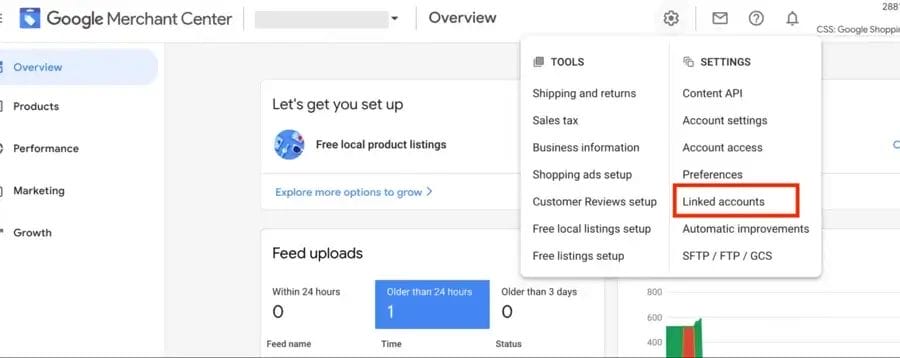
Step 5: Configure Your Google Shopping Campaign
With your Merchant Center and Ads accounts linked, you can create your Shopping ads campaign. Google offers free product listings in Google Shopping, but setting up a campaign in Google Ads allows you to run paid ads for improved reach. For this guide, we’ll walk through creating the campaign in Google Ads.
To create a Google Shopping campaign in Google Ads, follow these steps:

a. Log in: Start by entering your Google Ads account.
b. Create a Campaign: Hit the “New campaign” button.
c. Set the Goal: Pick a campaign goal tied to your business needs. Options like “Sales,” “Leads,” and “Website traffic” are standard; for Shopping, “Sales” usually fits best to encourage product purchases.
d. Pick the Campaign Type for your Google Shopping ads: Choose “Shopping” and click “Continue.” Ensure that your Google Merchant Center account information is displayed correctly.
e. Choose a Subtype: Decide between Smart and Standard Shopping campaigns. Select the type that matches your marketing approach, then click “Continue.” Once you choose, update the campaign name, set inventory filters, turn on local inventory ads if you have a brick-and-mortar store, and adjust the campaign URL as needed.
f. Set Budget and Bids: Select a bidding method. You can opt for Manual CPC, where you control the bid amounts, or let Google’s automated options adjust bids to optimize conversion rates.
First, decide how much you want to spend each day, then pick a delivery setting. If you choose “Standard,” Google distributes your budget evenly throughout the day. If you prefer, select “Accelerated,” which allows your budget to be used more quickly, enabling you to place more ads within a shorter timeframe.
Next, narrow your audience and schedule. Choose the countries and regions you want to reach, and set the start and end dates for how long your campaign will run.
Step 6: Arrange Your Product Groups
The final step to complete your Google Shopping setup is to group your products within the campaign. Ad groups control which ads show and how you set the bids. You can either create Product Shopping groups or Showcase Shopping groups.
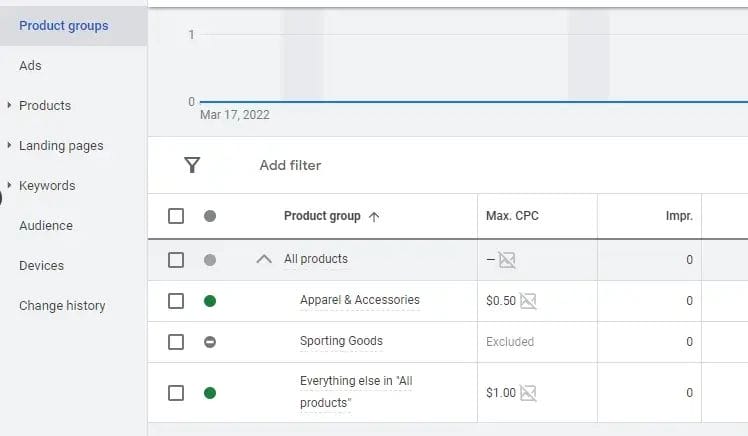
Product Shopping groups show a single item in the ad, while Showcase Shopping groups display a set of products in one ad. Select the format that best suits your catalog and advertising goals. After you’ve set up the groups, tap “Save” to launch your campaign. Your products will then start showing on Google Shopping.
Conclusion
The rise of online shopping shows no signs of slowing down, and Google Shopping stands out as an indispensable channel for any brand eager to capture a share of this multi-trillion-dollar ecommerce market. When you integrate Google Shopping Actions and carefully execute each setup phase, you not only amplify your product visibility but also create a seamless checkout journey for your customers, driving up both sales and conversion rates. Tapping into Google’s vast audience and intelligent tools will keep you ahead of the competition and unlock the full power of your e-commerce strategy.

Vijay Sood is a seasoned digital marketer with a passion for driving online growth and innovation. With a robust background in developing and executing comprehensive digital strategies, Vijay excels in leveraging SEO, content marketing, and social media to boost brand visibility and engagement. His expertise lies in transforming data-driven insights into actionable marketing campaigns, helping businesses achieve their digital objectives.